How to Use Spotify Offline and Listen Without Internet Anywhere
These days, everyone just streams music on Spotify as it gives access to millions of tracks.
But this convenience comes at a cost as the internet is needed to use Spotify.
Let’s face it… You can’t stay connected to internet if you are traveling or you want to save mobile data.
That’s why Spotify has introduced its offline mode which solves this issue.
But what is this offline mode and who can you use it?
What are the storage and download limits of Spotify offline? We will answer all of these questions in this guide for Spotify offline.
What is Spotify Offline?
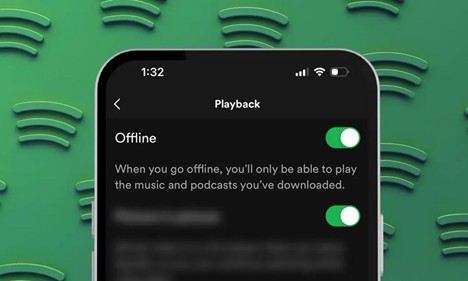
Offline is a special feature in the Spotify app that gives access to content without internet.
It is just like how you can download stuff on YouTube and then watch it without internet.
The following can be downloaded via Spotify offline:
- Albums;
- Playlists;
- Podcasts;
- Audiobooks.
Once downloaded, a user can listen to them without internet.
This is a great feature for those who are frequent commuters, travelers or anyone looking to reduce mobile data usage.
But who can use offline feature? It is only available for Spotify Premium users… The good news is that you can buy an account from U7BUY.
However, the users on Spotify’s free tier can not use this feature. So, they will always need to stream songs on a free account.
Still, some selective podcasts can be downloaded on a free account depending on region and availability.
✨Tip: The offline feature is only available on mobile devices and smartwatches. On PC, you will absolutely need internet as the download option is not available.
How to Download Content on Spotify
Now, let’s look at how you can download via the Spotify premium:
1. Open the App
Locate and open the Spotify app (green logo).
2. Choose What to Download
To download music, open an album or a playlist. On this music streaming app, you can’t download individual songs… So, the only option is to download entire playlist/albums. However, you can download individual episodes or entire shows for podcasts.
✨Tip: It is a good idea to keep an eye on your available storage as you have to download full playlists.
3. Download Content
Once a playlist/album is being played, tap on the “Download” toggle. For podcasts, the download icon is right next to the episode or the show.
Spotify will begin downloading the content automatically. Once it is complete, you will see a green icon which is a sign that the content is now ready for offline listening.
4. Check Your Downloads
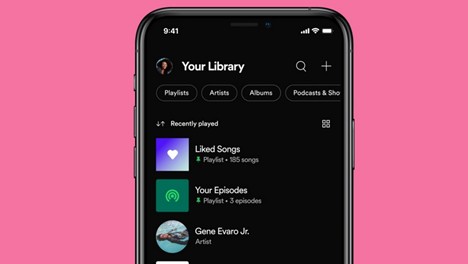
All the downloaded content like music, podcasts, & audiobooks will be available in the “Your Library”. So the next time you are offline, you can play all the stuff in the library without internet.
✨Tip: Only download content on Spotify over wifi for the best experience and avoid mobile data.
How To Use Offline Mode in Spotify
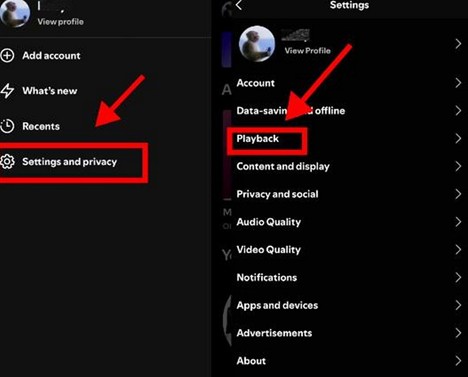
Let’s say you have downloaded the music or podcasts via Spotify’s premium. Then what? You just need to turn on this premium-only feature now.
Here’s how to enable the offline mode:
- Open Spotify > Settings.
- Tap on Playback > Enable offline.
The app will stop using mobile data/WiFi once offline is enabled. So, the only thing you will see is the content that’s already downloaded. Also, if you don’t have an active connection, the app will automatically default to offline state.
But, here’s the thing – Some features will be unavailable in this mode. For example, you can not search for new tracks on Spotify, stream content via the internet, or get fresh recommendations. For all of these, you will need to reconnect to the internet.
Also, users are required to go online occasionally to keep the downloads active. This is similar to how YouTube download & offline system works.
✨Tip: Remember to log in to the Spotify app every few weeks. This will keep the downloaded content available.
Storage and Download Limits
According to Spotify, 10000 tracks can be downloaded on each device.
This means you can keep tons of songs in your library provided that you have enough available storage.
But, it’s also important to know how much space the downloads will take… Well, it depends on which audio quality you choose during the download.
The following download quality options are available:
- Normal;
- High;
- Very High.
Higher quality will provide better sound but will also take up more storage space on the device.
For example, selecting the “very high” quality will give the best listening experience, but will fill up your device in no time.
You can manage the download quality by going to Settings > Audio Quality. So, if you have limited storage, you should prefer the Normal or High quality.
✨Tip: It is a good idea to remove content from “your library” that is no longer needed. Why? This will help you avoid running out of space so you can continue to download more content in library.