Tuya Smart on Windows: Managing a Whole-House Device List From a Desktop
✨ Key Points
- Can Tuya Smart run on Windows? Tuya is gradually rolling out a PC web version, but access and available functions may vary. There may not be a full native Windows app for every user.
- What can Tuya Smart manage? It can organize and control compatible lights, plugs, cameras, sensors, appliances, and other devices through one Tuya account.
- Why use Tuya Smart on a PC? A larger screen can make it easier to review many devices, monitor cameras, organize rooms, and manage whole-home settings.
Smart home devices are easier to manage when lights, plugs, cameras, sensors, and appliances appear in one connected system.
Brand-specific apps often create separate accounts, notifications, and automation tools, while platform apps support compatible products from multiple manufacturers.
Tuya Smart follows the platform model.
It allows users to add compatible devices, organize them by room, create automated routines, share household access, and control supported products through one account.
According to Tuya, its smart home platform supports devices across brands, categories, and communication protocols, including Wi-Fi, Bluetooth, and Zigbee.
However, people searching for Tuya Smart on Windows should understand an important limitation: Tuya’s primary consumer experience remains mobile, while its PC web version is being introduced gradually. Availability and supported controls may therefore vary by account, region, and device.
Desktop access can be especially useful when you need to:
- Review a large whole-house device list;
- Organize devices by room or function;
- Check the status of several devices at once;
- Manage compatible cameras from a larger screen;
- Adjust scenes and automation settings;
- Handle household access more comfortably.
This guide explains the current options for accessing Tuya Smart from a Windows PC, what desktop users can expect, and when the mobile app may still be required.
One Account for Every Brand of Gadget
The appeal of a platform app is inventory management as much as control.
Once you pass roughly ten connected devices, the hard part stops being “can I turn this on from my phone” and becomes “which of these four identical smart plugs is the one in the garage.”
Tuya Smart handles that by letting you add and control multiple devices at once inside one app, with naming and organisation that carries across every device you register to the account.
The onboarding is designed to be quick, which matters when you are pairing a strip of bulbs one after another.
Voice control rides on the same account.
The app supports Amazon Echo and Google Home, so once a device is registered it becomes addressable by voice without a separate integration step per manufacturer.
Rules that fire without you touching a switch
The feature that separates a device controller from a smart home system is conditional automation, and this is where the app earns its keep.
Devices can start and stop working based on temperature, location and time, and multiple devices can interwork rather than acting alone.
Location triggers are the ones people underuse: geofencing means the heating or the porch light responds to arrival rather than a fixed schedule, which handles irregular working hours better than any timer.
Temperature triggers pair well with sensors.
A humidity or temperature reading crosses a threshold, and a fan, dehumidifier or heater on a smart plug responds. It is basic logic, but chained across several devices it covers most of what a household needs.
Real-time alerts round it out.
Door sensors, leak detectors and motion sensors push notifications as events happen, which is the difference between finding out about a problem now and finding out when you get home.
Sharing the controls without sharing your login
Device sharing is one of those features that sounds minor until you live with someone.
Tuya Smart allows devices to be shared among family members, so a partner or housemate can control the lights without you handing over your account credentials.
Sharing selectively also means you can keep the sensitive things, cameras, locks, alarm sensors, on a tighter list while opening up the lighting and plugs to everyone.
Anyone who has run a household smart setup as the sole administrator knows how quickly that becomes tedious otherwise.
Running Tuya Smart on a Windows desktop
Here is the honest framing: this is an Android app, and there is no native Windows build of it.
Running it on a desktop means running the mobile app inside an Android environment on your PC, which is what an emulator provides.
Guides covering Tuya Smart for PC generally describe the same route, and the mechanics are straightforward enough once you know what to expect.
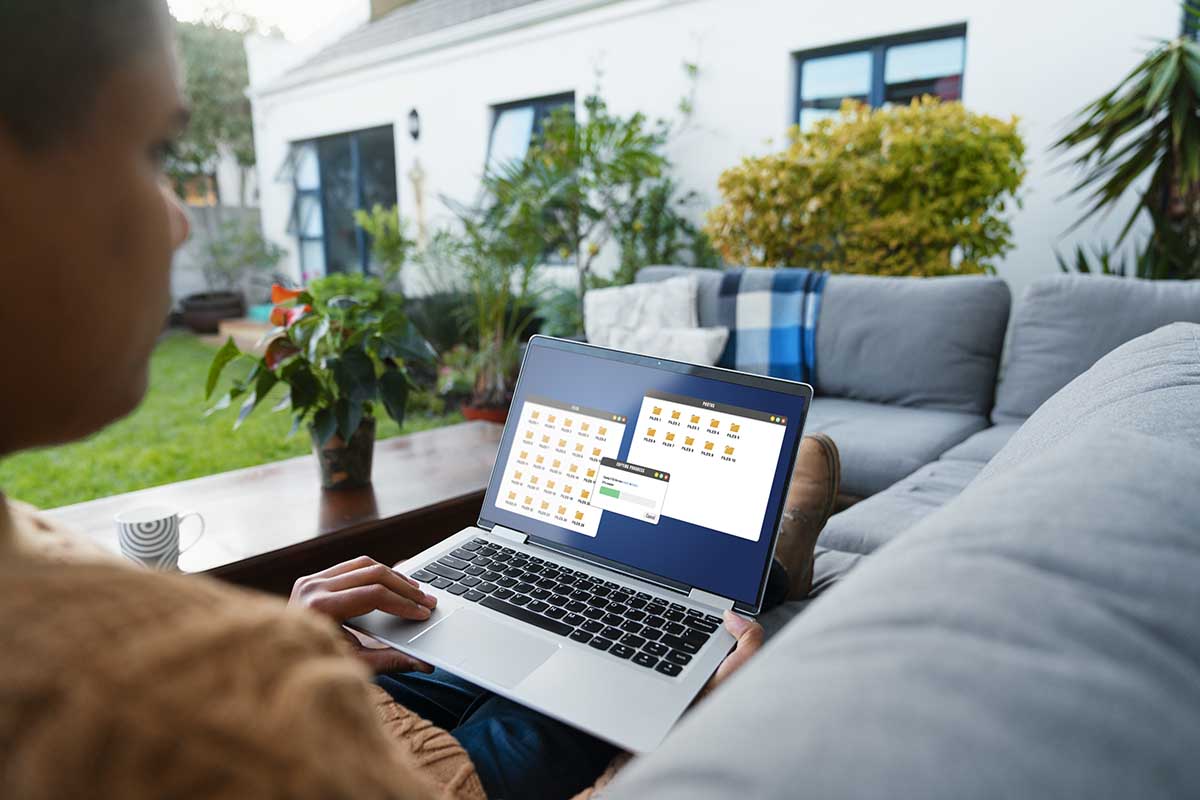
The reason to bother is screen size and input. A phone screen shows a handful of device tiles at a time; a 27 inch monitor shows the entire house, which changes how you work with the app when you are doing setup rather than day-to-day control.
Naming twenty devices, building automation rules with several conditions, or reorganising rooms after moving house are all keyboard-and-mouse jobs.
Typing device names on a physical keyboard instead of a phone touchscreen is a small thing that adds up across a long session.
There is also the practical case of leaving it open.
If you already work at a desk all day, having the device list in a window beside your other work means alerts appear where you are looking, rather than on a phone face-down on the other side of the room.
Getting it installed through BlueStacks
BlueStacks is the emulator most people reach for on Windows. The general process looks like this:
- Install the emulator on your Windows PC and let it complete its first-run setup, which takes a few minutes.
- Sign in to a Google account inside the emulator so the Play Store becomes available.
- Search the Play Store for Tuya Smart and install it as you would on a phone.
- Open the app and sign in with your existing Tuya account, or create one if this is a fresh setup.
- Allow the permissions the app asks for, keeping in mind that location-based automations depend on location access.
Where the emulator falls short
Two limits show up once you start using it this way.
Initial device pairing often relies on Bluetooth or on the phone joining a device’s temporary Wi-Fi network, and an emulator does not always pass those through cleanly, so pairing new hardware on a phone first and then managing it from the desktop is the path of least resistance.
The other is geofencing.
Location triggers depend on a device that moves with you, and a desktop PC does not, so location-based automations should stay on the phone while the desktop handles time and temperature rules, device organisation and monitoring.
Performance is rarely an issue.
This is a control app sending small commands to a cloud service, not a 3D game, so a modest laptop handles it without complaint. Enabling virtualisation in the BIOS is still worth doing, since it makes the emulator noticeably more responsive overall.
Why the alerts land better on a monitor
Where a desktop setup pays off most clearly is that alert stream mentioned earlier.
A leak sensor in a utility room firing a notification into a window you already have open, on a screen you are already watching, gets a faster response than the same alert buzzing on a phone in another room.
For a house with sensors scattered across several rooms, that is enough on its own to leave the app running next to a browser tab all day.