How to Make Webcasts Feel More Like Live Events
✨ Key Points
- Treat a webcast like a production, not a video call. Multiple camera angles, professional audio, lighting, graphics, and smooth transitions can create a more polished experience and maintain visual interest.
- Give remote viewers something to do. Live polls, Q&A sessions, moderated chat, audience questions, and interactive segments turn passive viewers into participants.
- Design specifically for online attention spans. Shorter segments, strong speakers, visual variety, clear pacing, and planned transitions can help prevent viewers from opening another tab and mentally leaving the event.
A webcast has one disadvantage that an in-person event doesn’t: your audience can leave without even getting out of their chair.
One email notification, another browser tab, or a slow 20-minute presentation can be enough to lose their attention.
That makes engagement one of the biggest challenges for companies hosting virtual and hybrid events.
Today’s viewers expect more than a presentation accompanied by a webcam feed.
Whether you’re broadcasting a product launch, company town hall, conference, training session, or executive presentation, the experience needs to feel intentional and worth watching.
So, how do you make a webcast engaging enough to compete for people’s attention?
Focus on the elements viewers actually experience:
- Clear, professional audio;
- Strong lighting and camera work;
- Visual variety rather than one static shot;
- Short, well-paced presentation segments;
- Live polls, Q&As, and audience participation;
- Smooth transitions between speakers;
- Reliable streaming with contingency plans for technical problems.
Professional webcasting services can bring these elements together, but technology alone won’t make an event engaging.
The production, content, speakers, and audience interaction all need to be designed for people watching remotely.
By leveraging professional Webcasting Services by Megahertz Production, event organizers can bridge the physical-digital divide and turn remote broadcasts into unforgettable visual experiences.
Here is how to make a webcast feel less like another online meeting and more like an event people actually want to stay for.
Ditch the Webcam Mindset for Broadcast Production Quality

The fastest way to signal that a webcast is “just another online meeting” is to rely on built-in laptop cameras and desktop microphones.
The human eye and ear are conditioned to recognize cinematic quality.
When a webcast looks and sounds like a professional television broadcast, audiences pay attention.
Multi-Camera Switching and Dynamic Framing
In a physical venue, the audience’s eyes naturally move.
They look at the speaker, pan across the stage, or watch the reaction of a panelist. You can recreate this dynamic rhythm visually by using a multi-camera setup.
- Wide Master Shots: Establish the environment and stage setting, giving viewers a sense of physical scale.
- Medium Framing: Focus on primary presenters to convey authority and body language.
- Tight Close-Ups: Capture nuanced facial expressions during emotional points or direct calls to action.
Switching between various camera angles keeps the viewer’s brain visual-engaged and prevents the fatigue associated with looking at a single static angle for an extended period.
Professional Studio Lighting
Bad lighting instantly degrades high-end cameras.
Standard office overhead lighting causes harsh shadows under the eyes and flattens features.
A proper three-point lighting setup (key light, fill light, and back/hair light) separates presenters from the background, adding physical depth to the frame.
Controlled color temperatures ensure natural skin tones, making presenters appear energized and professional.
Crystal-Clear Audio Processing
Audio makes up 70% of the perceived quality of any video production.
Viewers will tolerate minor visual artifacts, but muffled, echoing, or distorted sound will cause them to disconnect immediately.
To eliminate room reflections and unwanted ambient noise:
- Use discrete lavalier or directional headworn microphones for every presenter.
- Direct all audio channels through a dedicated mixer with hardware noise gates, equalizers, and compressors.
- Ensure presenters sitting side-by-side do not suffer from acoustic bleed or phase cancellation.
Design an Authentic Stage Environment
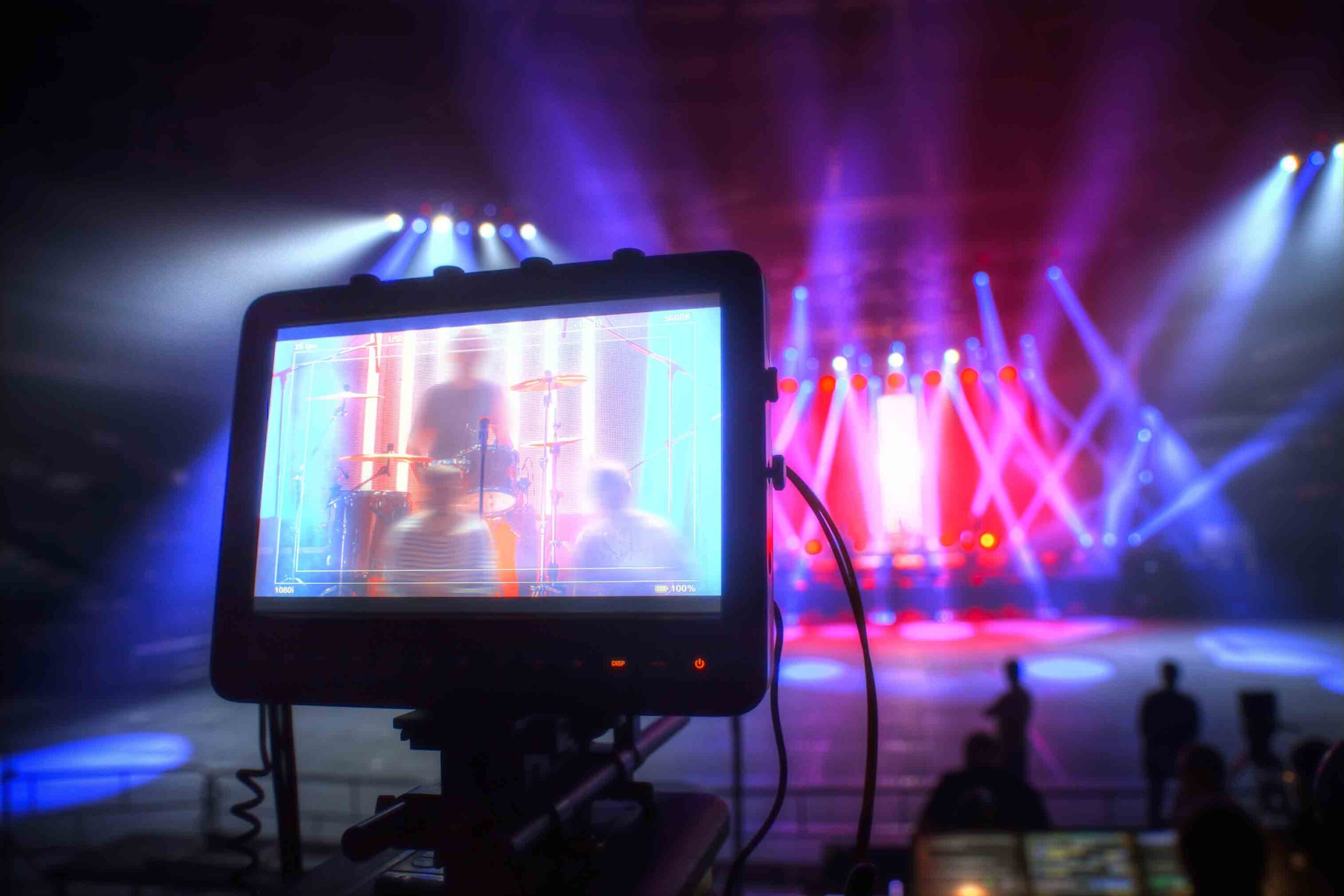
The physical space where your presenters stand sets the tone for the entire webcast.
Placing speakers in a generic conference room surrounded by plain drywall strips away the theatrical essence of a live event.
- Scenic Elements and Spatial Depth. A great webcast stage creates a sense of environment. Incorporate physical scenic backdrops, textured acoustic panels, or modular staging setups. Use key branding elements subtly in the background, avoiding massive, reflective step-and-repeat backdrops that look clinical on camera.
- Architectural LED Lighting. Incorporate intelligent LED uplighting along backdrops, pillars, and set walls. Adding color accents that align with corporate branding adds depth and warmth. Programmable lighting transitions can also be used to signal tone shifts, for example, switching from bright white during keynotes to warmer tones during intimate panel discussions or Q&A sessions.
- On-Set Monitoring and Confidence Displays. In a live theater setting, speakers rely on monitors to stay on track without looking away from the crowd. Equip your webcast set with large confidence monitors positioned directly below or adjacent to the main cameras. These displays allow presenters to see their speaker notes, slide decks, and remote audience video feeds without breaking eye contact with the camera lens, and by extension, the remote audience.
Prioritize Real-Time, Two-Way Engagement
A live event is a dialogue, not a monologue.
When attendees feel like passive spectators, their attention naturally drifts. To recreate the energy of a live crowd, design interactive touchpoints directly into the production workflow.
Live Audience Video Walls
Bring remote participants directly into the room by building an audience video wall behind or opposite the presenter.
Displays showing tiled webcam feeds of remote attendees allow speakers to play off real-time reactions, smiles, and head nods.
This recreates the physical feedback loop that speakers rely on during in-person presentations.
Moderated Q&A with Live Video Call-Ins
Instead of reading text questions from a chat box, bring remote attendees “on stage.”
Using low-latency return feeds, route selected audience members directly into the main broadcast feed to ask their questions face-to-face with the presenter.
This element of unscripted interaction keeps the audience attentive, knowing anyone could potentially be brought into the spotlight.
Gamification and Real-Time Polling
Incorporate dynamic graphics platforms that render instant audience poll results on screen in real time.
Rather than showing static charts, use animated lower-third graphics and full-screen overlays that populate instantly as votes come in.
Have your speakers address the shifting data live to make viewers feel their input genuinely shapes the narrative.
Master the Rhythm and Pace of a Broadcast
Live events have natural momentum, built-in transitions, and energy arcs.
Webcasts, on the other hand, often suffer from long pauses, awkward slide transitions, and dead air. Treating your timeline like a live television show preserves audience focus.
Motion Graphics and Lower Thirds
Never launch directly into a presentation from a black screen. Build professional lower-third graphics to display speaker names, titles, and key topics. Use animated full-screen stingers (short video transitions) to switch smoothly between different segments, panels, and slide demonstrations.
These cues tell the audience that every second of the event is intentionally orchestrated.
Dedicated Technical Directors and Operators
A single presenter or stream manager should never be expected to handle speaking, slide switching, audio levels, and chat moderation simultaneously.
A broadcast-grade webcast relies on a dedicated technical crew:
- Technical Director (TD): Operates the video switcher to select camera angles and graphic overlays.
- Audio Engineer: Manages microphone levels, EQ, and sound cues.
- Stream/Encoding Technician: Monitors bandwidth, bitrate integrity, and stream distribution platforms.
- Stage Manager: Keeps presenters informed on timing, cues, and camera positions.
- Delegating these tasks ensures the technical execution remains flawless, allowing the talent on camera to focus entirely on connection and delivery.
Dynamic Pre-Show and Post-Show Experiences
The event experience begins long before the main presentation starts.
Avoid opening with a static “The event will begin shortly” slide.
Instead, construct a dynamic 10-minute pre-show sequence that includes:
- An animated countdown timer set over high-energy background music.
- Sizzle reels or highlighting key takeaways from previous events.
- Scrolling social media feeds featuring event hashtags.
- When the timer hits zero, trigger an energetic video stinger that introduces the host.
- This builds genuine anticipation and mimics the feeling of sitting down in a auditorium right as the house lights dim.
Integrating Hybrid Elements for On-Site and Remote Cohesion
When hosting a hybrid event featuring both a physical audience and a virtual audience, it is easy to accidentally prioritize the room over the stream.
To make remote viewers feel like equal participants, the technology and scripting must integrate both audiences seamlessly.
- Dedicated Host for the Online Audience. Appoint a dedicated digital emcee whose sole job is to host the virtual crowd. During physical room breaks or transition periods, the digital host addresses the stream directly, summarizes key insights, interviews speakers backstage, and fields questions specifically from the remote chat.
- Spatial Audio Field Management. If your event includes an in-person audience, capture their reactions. Room microphones (boundary or shotgun mics aimed at the seats) pick up applause, laughter, and ambient reactions. Mixing this ambient audio into the webcasting feed provides critical auditory context, making remote viewers feel as though they are sitting right in the center of the crowd.
Technical Redundancy: Protecting the “Live” Experience
Nothing breaks the immersion of a live experience faster than a buffering wheel, a dropped stream, or sudden audio loss.
A key part of what makes live events feel confident and high-stakes is seamless, uninterrupted execution.
Build enterprise-grade redundancies into your technical architecture to guarantee performance.
- Dual-Bonded Internet Connections. Never rely on a single Wi-Fi or hardwired ethernet connection for a critical webcast. Employ hardware routers capable of network bonding, combining a primary dedicated fiber line with a secondary cellular 5G network. If the main network fails, the system switches traffic automatically without interrupting the live feed.
- Hardware Failovers. Run primary and secondary encoding computers simultaneously. If the main processing unit encounters a software glitch or power loss, a seamless video switcher converts to the backup stream instantaneously, keeping the audience experience smooth and uninterrupted.
- Elevating Your Next Webcast. Transforming a virtual presentation into a compelling, event-level experience requires moving past basic web conferencing tools. By applying broadcast production principles—multi-camera directing, intentional studio lighting, engineered audio, and active two-way engagement—you turn passive viewers into active participants.
Treating your webcast with the same care, budget, and technical precision as an in-person stage production delivers an experience that commands attention, conveys value, and leaves a lasting impression on your audience.